
What is an automation workflow?
An automation workflow is a series of steps that run automatically after being triggered by a specific date, event, or subscriber action. It’s perfect for situations like welcoming new subscribers or following up after someone joins a group—Fairy Mail takes care of the emails for you, so you don’t have to send them manually each time.
How automation workflows work
Each automation workflow begins with a trigger—this is what sets everything in motion. As soon as a subscriber matches the conditions of the selected trigger, they enter the workflow immediately.
The steps that follow are processed in order, one after the other. If there are no delay blocks between email steps, all emails will be delivered almost instantly, making it feel like they’re sent at the same time.
It’s important to note that a step won’t run if the one before it hasn’t been completed successfully. Think of your workflow as a chain of events—if one link breaks, the next can’t continue.
Create Your First Automation in Fairy Mail
Automations in Fairy Mail allow you to send timely, relevant emails based on how your subscribers behave or interact with your campaigns. You can set up workflows using triggers and actions to automate repetitive tasks and stay connected with your audience without lifting a finger.
To get started, go to the Automations page from the main menu and click the “Add Automation” button. You’ll be prompted to name your automation before building your flow.
Step-by-Step Guide to Building an Automation
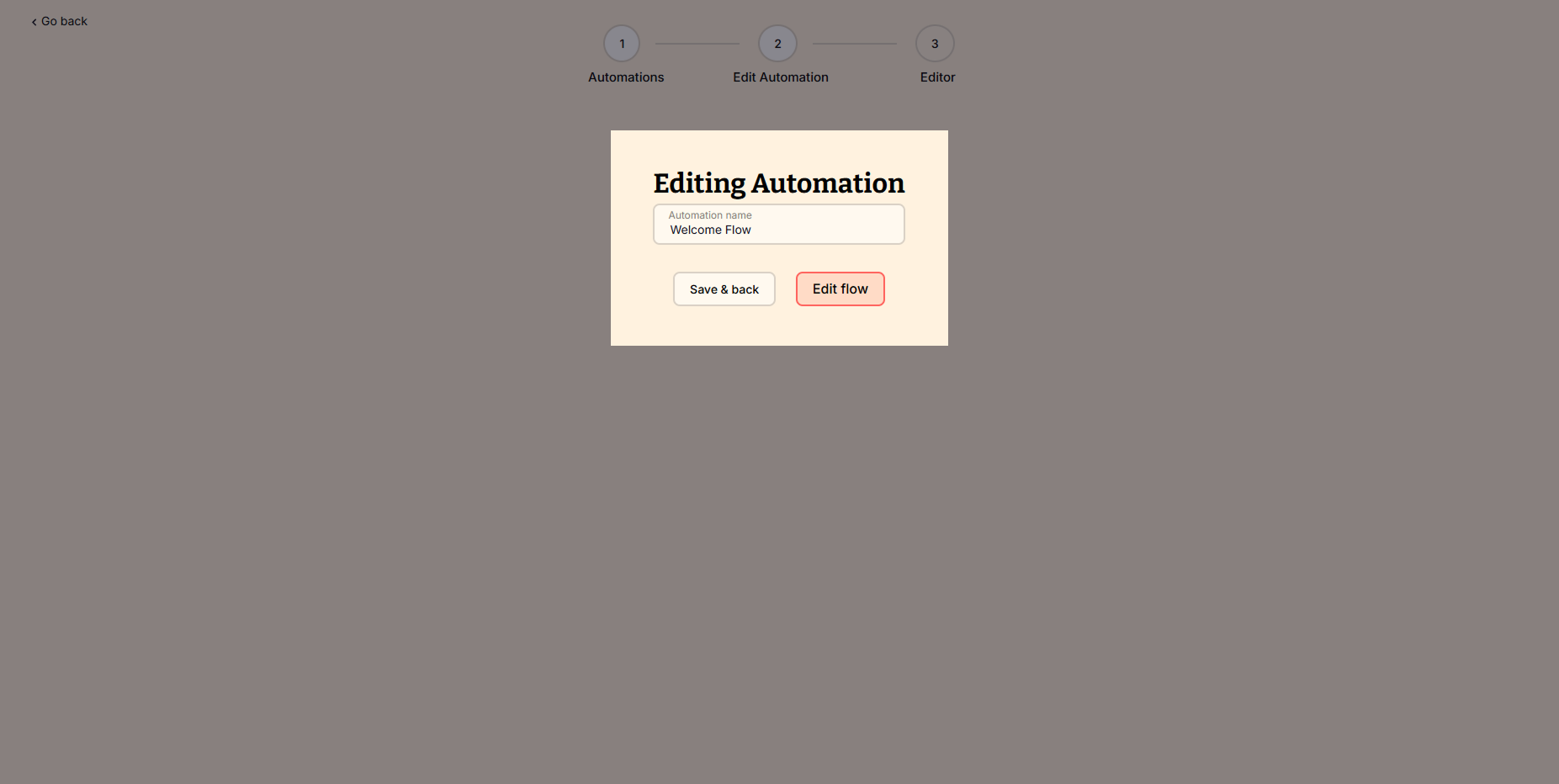
1. Name Your Automation
Start by giving your automation a descriptive name so you can easily identify it later. This could be something like “Welcome Series” or “Abandoned Cart Reminder.”
2. Set a Trigger
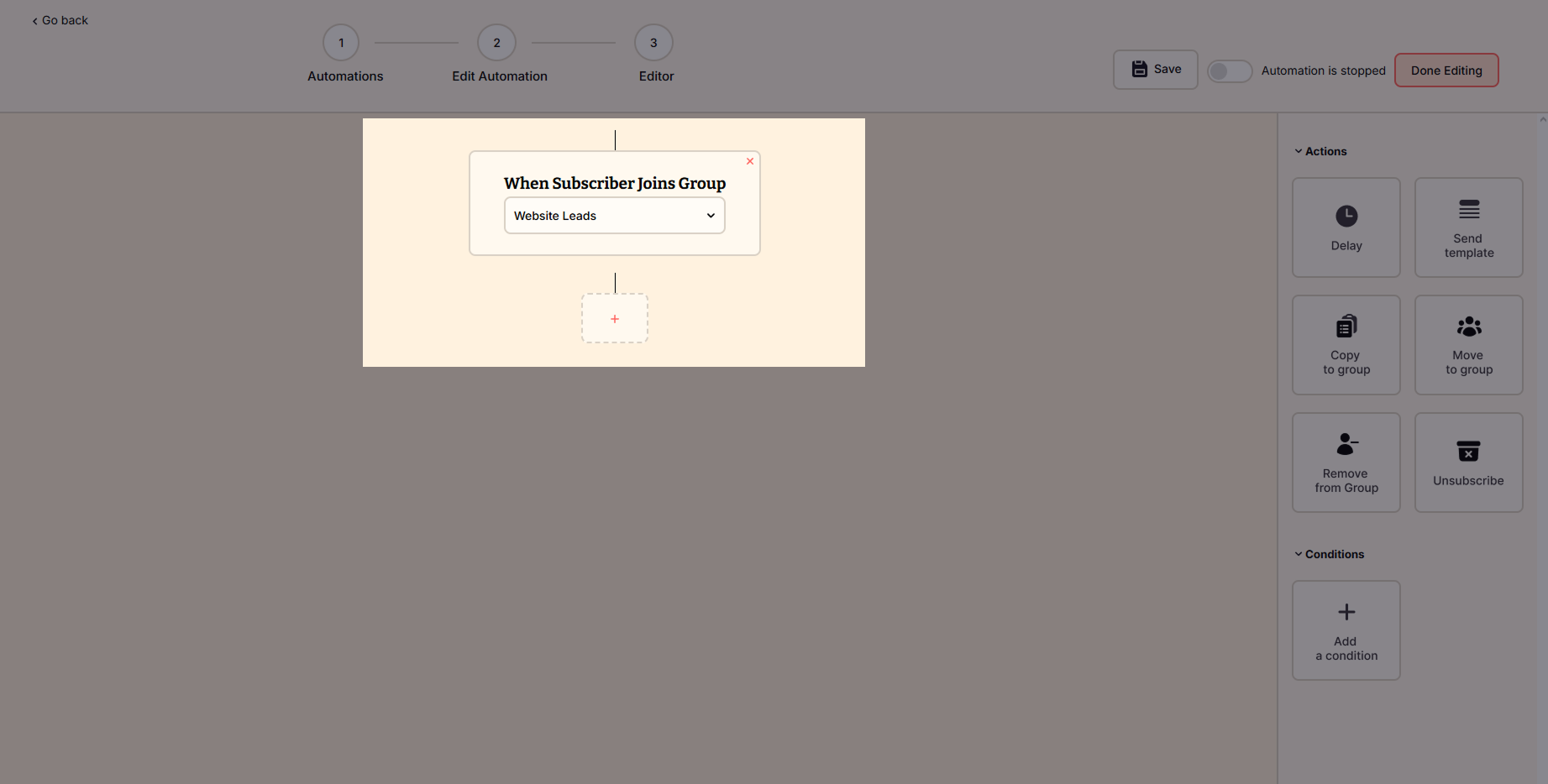
A trigger is what starts the automation. Choose one of the available options based on how you want the automation to begin. Currently supported triggers:
- When subscriber joins a group.
- When opens a campaign.
- When clicks a link.

3. Add Actions to Your Workflow
After your trigger is set, build the rest of your flow using actions. These determine what happens next for your subscribers.
Available actions:
- Send template – Automatically send a pre-designed email.
- Delay – Add a time delay before the next action (e.g., wait 2 days).
- Move to group – Move the subscriber to another group.
- Copy to group – Add the subscriber to another group without removing them from the current one.
- Unsubscribe – Remove the subscriber from your list.
- Remove from group – Useful for cleaning up your segments.
4. Add Conditions (Optional)
Use conditions to add logic to your workflow. Conditions help you create targeted branches inside your automation based on subscriber behavior.
When adding a condition, you’ll first choose the type of activity you want to check:
- Workflow Activity – checks how a subscriber interacted with a previous step in the same automation.
- Campaign Activity – checks subscriber behavior in standalone email campaigns outside the workflow.
After selecting the activity type, you can apply one of the following conditions:
- Opened – subscriber opened a specific email.
- Not Opened – subscriber did not open the email.
- Clicked – subscriber clicked a link in the email.
- Not Clicked – subscriber did not click any links.
This allows you to create paths like:
“If subscriber didn’t open the previous email, send a reminder after 2 days,” or
“If subscriber clicked, move them to a more targeted group.”

5. Final Step: Save and Activate
Once your flow is complete, hit “Save” and “Done Editing” and toggle the switch to activate your automation. You can edit or pause automations anytime.
How to pause an automation workflow
To make changes to an active automation, you must first pause it or turn it off.
To pause an automation workflow:
- Navigate to the Automation page
- Find the workflow you wish to pause and access the editor
- Toggle the status of the workflow from Active to Inactive (Paused) on the right side

When an automation workflow is paused, subscribers are paused on the step they’re up to at the moment that you pause it. When the automation is activated again, all subscribers in the automation sequence continue at the steps they’ve been waiting for.
