Last Updated: September 12, 2025
FairyMail (“we,” “our,” or “us”) values your privacy and is committed to protecting your personal information. This Privacy Policy explains how we collect, use, store, and share your information when you use our website and services (collectively, the “Services”).
By using FairyMail, you agree to the practices described in this Privacy Policy.
1. Information We Collect
We collect the following categories of information:
- Account Information:
When you register, we collect your name, email address, password, billing details, and other account-related information.
- Usage Data:
We automatically collect certain information about your interactions with our Services, such as IP address, browser type, device information, pages viewed, and usage timestamps.
- Subscriber Data:
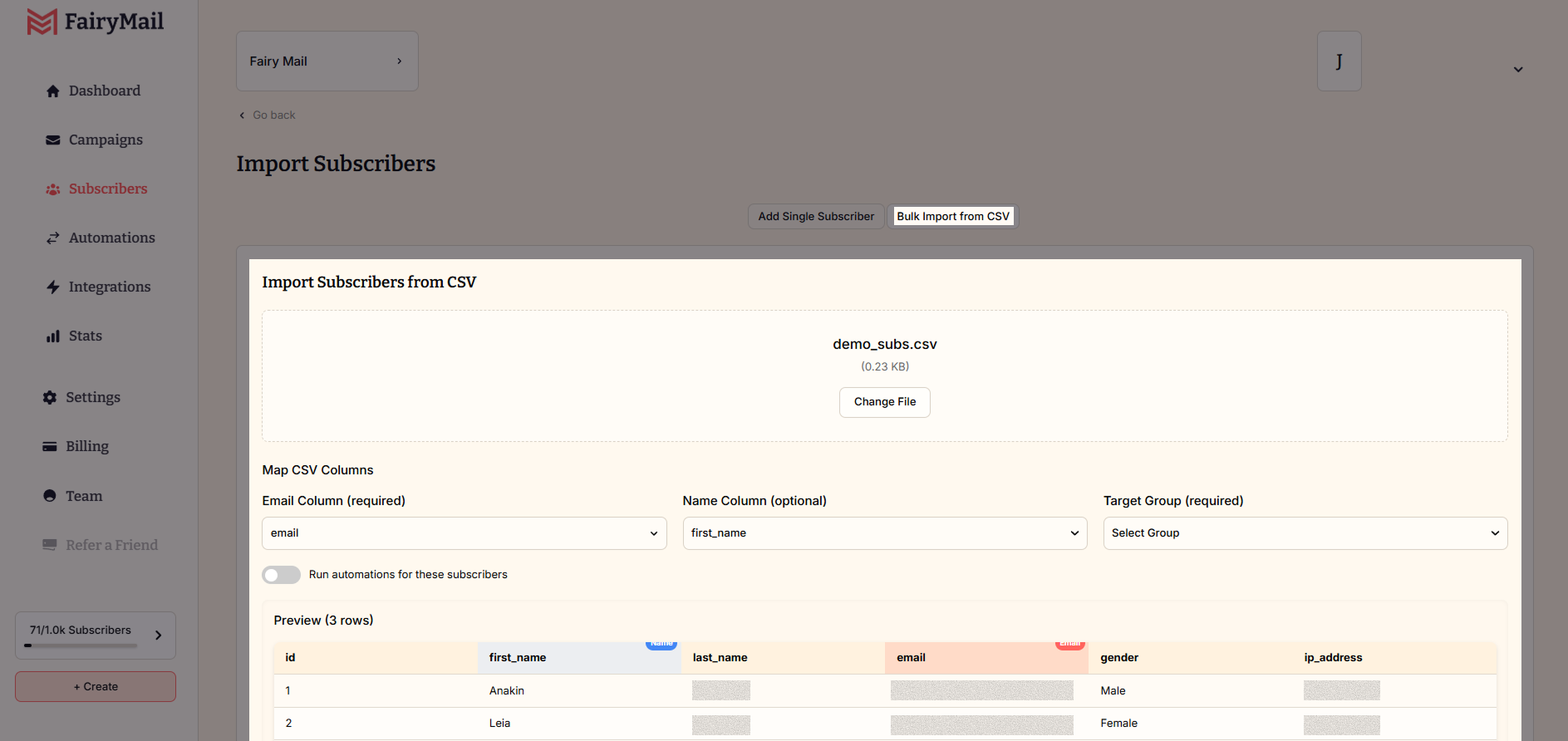
When you upload contact lists or send email campaigns using FairyMail, we process the email addresses and any associated data you provide (“Subscriber Data”) solely to deliver the Services.
- Cookies & Tracking Technologies:
We use cookies, and similar tools to improve functionality, measure performance, and support marketing efforts. For details, see our Cookies Policy.
2. How We Use Your Information
We use your data to:
- Provide, operate, and improve our Services.
- Process transactions, manage billing, and maintain your account.
- Monitor platform performance and ensure compliance with our Terms of Service.
- Prevent, detect, and investigate fraudulent or abusive activity.
- Comply with legal and regulatory obligations.
- Send you important updates, product announcements, and optional marketing communications (which you can opt out of at any time).
3. Sharing and Disclosure
We do not sell your personal data. We may share your information only in the following circumstances:
- Service Providers: With trusted vendors (e.g., hosting providers, payment processors, analytics tools) that help us deliver our Services.
- Legal Requirements: If required by law, subpoena, or court order, or to protect our rights and users.
- Business Transfers: In connection with a merger, acquisition, or sale of assets, subject to this Privacy Policy.
4. Your Rights
Depending on your location, you may have specific rights under privacy laws such as the GDPR (EU/UK) and CCPA (California), including:
- Access & Portability: Request a copy of your personal data.
- Correction & Deletion: Update or delete your information.
- Restriction & Objection: Limit or object to certain types of data processing.
- Opt-out of Marketing: Unsubscribe from promotional emails at any time.
To exercise these rights, contact us at [email protected]. We may verify your identity before fulfilling your request.
5. Data Retention
We retain your personal data only for as long as necessary to:
- Provide our Services,
- Fulfill our legal obligations,
- Resolve disputes, and
- Enforce our agreements.
You can request deletion of your account and data at any time.
6. Security
We implement industry-standard technical and organizational measures to safeguard personal data, including encryption, access controls, and monitoring systems.
7. International Data Transfers
If we transfer your personal data outside the European Economic Area (EEA) or other jurisdictions with data transfer restrictions, we ensure appropriate safeguards, such as Standard Contractual Clauses (SCCs) or other approved mechanisms.
8. Changes to This Policy
We may update this Privacy Policy from time to time. Significant changes will be communicated via email or prominent notice on our website. Continued use of our Services constitutes your acceptance of any updates.
9. Contact Us
For questions, concerns, or to exercise your privacy rights, contact us at:
Email: [email protected]